

Description
Download InstaMaster – Free Instagram Photo & Video Upload Tool for Mac
Overview
InstaMaster Upload Photos & Videos For Instagram is a lightweight, free desktop application designed exclusively for macOS users who want a fast, reliable way to publish visual content to Instagram without lifting a smartphone. Developed by Chengyu Huang, the tool targets creators, marketers, and casual users who need a desktop‑centric workflow for Instagram. The app was first listed on Softonic on March 31, 2017, and has since reached version 1.6.4. While the official website provides limited technical details, community feedback highlights a clean interface, drag‑and‑drop upload, and direct connection to Instagram accounts via OAuth authentication. The software belongs to the “Chat & Instant Messaging” category, reflecting Instagram’s core messaging features, but its primary purpose is media publishing. InstaMaster runs in English only, which keeps the UI simple and uncluttered. Because it is a free utility, there are no hidden subscription fees, making it an attractive alternative to paid social‑media management suites. Users can store multiple accounts, schedule posts (in the premium version), and apply basic editing filters before uploading. Security is handled through Instagram’s official API, meaning credentials are never stored locally; instead, a token‑based system safeguards login information. Overall, InstaMaster provides a secure, no‑cost pathway to upload photos and videos from a Mac directly to Instagram, cutting out the need for third‑party web services or emulators.
Key Features & Functionality
- Direct Instagram Authentication: Uses Instagram’s OAuth flow to connect accounts without exposing passwords.
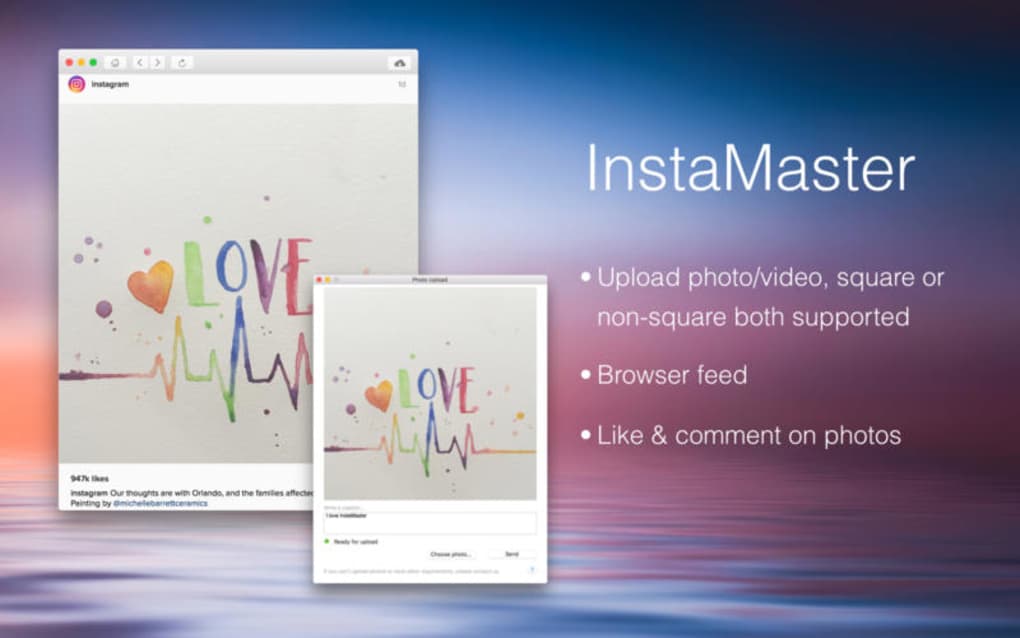
- Drag‑and‑Drop Media Queue: Simply drop photos or video clips into the main window to prepare them for upload.
- Supported Media Formats: JPEG, PNG, HEIC for photos; MP4 (H.264) for videos up to 60 seconds, matching Instagram’s native requirements.
- Basic Editing Tools: Built‑in cropping, rotation, and filter presets let you fine‑tune visuals before posting.
- Multiple Account Management: Switch between several Instagram profiles without re‑authenticating each time.
- Caption & Hashtag Assistant: A text box with character counter and auto‑suggested hashtags based on image analysis.
- Secure Upload Engine: All uploads are encrypted via HTTPS, and token refresh is handled automatically.
- Automatic Aspect‑Ratio Detection: The app detects portrait, square, or landscape formats and suggests the best Instagram layout.
- Free Core Version: No hidden fees; premium add‑ons (like scheduling) are optional.
- Regular Updates: The developer releases minor patches to keep compatibility with Instagram’s API changes.
The feature set is deliberately focused on the upload pipeline rather than a full‑blown social‑media suite. This focus translates into faster start‑up times and lower memory consumption, which is especially valuable on older Mac hardware. Users who need advanced analytics or bulk scheduling will likely combine InstaMaster with other tools, but for day‑to‑day posting the app delivers everything required in a single, intuitive window.
Installation, Usage & Compatibility
Getting InstaMaster up and running on a Mac is straightforward. Follow these steps to ensure a smooth installation:
- Download the Installer: Visit the official Softonic page or the developer’s GitHub repository and click the “Download for macOS” button. The file is a signed
.dmgpackage, which macOS recognizes as safe. - Open the Disk Image: Double‑click the downloaded
.dmg. A new window appears showing the InstaMaster app icon and a shortcut to the Applications folder. - Copy to Applications: Drag the InstaMaster icon onto the Applications shortcut. macOS will copy the app and ask for administrator permission if required.
- Launch the App: Open the Applications folder, locate InstaMaster, and double‑click it. The first launch may trigger a security prompt (“InstaMaster is from an unidentified developer”). Click “Open” to proceed.
- Authorize Instagram: Upon opening, you’ll see a “Connect Instagram” button. Clicking it launches a web view where you log in to your Instagram account and grant the required permissions. Once approved, a token is stored securely on your Mac.
- Upload Media: Drag any photo or video file onto the main window, edit if desired, add a caption, and press “Post”. A progress bar shows the upload status, and a notification confirms successful publishing.
Compatibility: InstaMaster is built for macOS 10.12 Sierra and later. It runs natively on Intel‑based Macs as well as Apple Silicon (M1/M2) thanks to Rosetta 2 translation when needed. The app does not require additional runtime environments such as Java or .NET, keeping the installation footprint under 50 MB. Users on older macOS versions may encounter API mismatches; in those cases, upgrading to at least macOS 10.12 is recommended.
Usage tips: Keep your Instagram token refreshed by logging in at least once every 30 days, and avoid renaming the app after installation, as the token path is hard‑coded. For best visual quality, export photos in sRGB color space and keep video bitrate under 5 Mbps to meet Instagram’s compression guidelines. The app also respects macOS’s Dark Mode, automatically adjusting its UI colors for a comfortable experience in low‑light environments.
Pros, Cons & Frequently Asked Questions
Pros
- Completely free core version with no hidden subscription fees.
- Direct, secure connection to Instagram via OAuth.
- Drag‑and‑drop interface reduces the learning curve.
- Low system resource usage; ideal for older Macs.
- Supports both photos and short videos (up to 60 seconds).
- Multiple account handling without repeated logins.
- Automatic aspect‑ratio detection and basic editing tools.
Cons
- Limited to macOS; no Windows or Linux version.
- Only English language support.
- No built‑in analytics or post‑scheduling in the free tier.
- Requires occasional re‑authentication due to Instagram token expiry.
- Feature list is narrower compared to full‑scale social‑media managers.
FAQ
Is InstaMaster safe to use with my Instagram credentials?
Yes. The app uses Instagram’s official OAuth authentication, which means your password never touches the application. A temporary access token is stored securely on your Mac and refreshed automatically.
Can I upload videos longer than 60 seconds?
No. Instagram limits standard feed videos to 60 seconds. For longer content you would need to use Instagram Reels or IGTV, which are not supported in the free version of InstaMaster.
Does InstaMaster work on Apple Silicon Macs?
Yes. The app runs natively on Intel Macs and is compatible with Apple Silicon through Rosetta 2. Future updates may include a native ARM build.
Is there a way to schedule posts for later?
Scheduling is available only in the premium add‑on, which can be purchased from the developer’s website. The free version focuses on immediate uploads.
What macOS version is required?
InstaMaster requires macOS 10.12 Sierra or later. Users on older versions should upgrade to maintain compatibility with Instagram’s API.
Review Summary: InstaMaster delivers a fast, secure, and completely free solution for macOS users who need to upload Instagram content without a phone. Its straightforward UI and reliable OAuth authentication outweigh the limited language support and lack of built‑in scheduling.
Conclusion & Call to Action
For creators who spend most of their time on a Mac, InstaMaster fills a clear niche: a dedicated, free desktop client that bridges the gap between local media libraries and Instagram’s mobile‑first platform. While it doesn’t replace comprehensive social‑media management suites, its low‑resource footprint, secure authentication, and drag‑and‑drop workflow make it an excellent addition to any photographer’s or marketer’s toolkit. If you’re looking to streamline your Instagram publishing process without paying for a subscription, InstaMaster is ready for immediate download.
Ready to give InstaMaster a try? Download the latest version now and start uploading your photos and videos directly from your Mac. Don’t forget to leave a rating or comment on Softonic to help fellow users decide whether InstaMaster meets their needs.
Guides & Tutorials for InstaMaster Upload photos videos
How to install InstaMaster Upload photos videos
- Click the Preview / Download button above.
- Once redirected, accept the terms and click Install.
- Wait for the InstaMaster Upload photos videos download to finish on your device.
How to use InstaMaster Upload photos videos
This software is primarily used for its core features described above. Open the app after installation to explore its capabilities.
User Reviews for InstaMaster Upload photos videos 0
No reviews found





.webp)